The Nintendo Switch dock is more than just a charging stand, it’s the bridge between handheld gaming and the full TV experience. Whether you’re racing through Mario Kart on the go or settling in for a couch co-op session, that unassuming plastic base transforms your Switch’s output and performance. But like any piece of hardware, the dock comes with its quirks: video signal dropouts, charging hiccups, and the occasional scratch scare.
This guide walks through everything you need to know about the Nintendo dock in 2026. You’ll learn how it works under the hood, how to set it up properly, and how to troubleshoot the most common problems. We’ll also compare official and third-party options, highlight the best travel docks, and share tips for keeping your setup running smoothly. If you’ve ever wondered why your Switch won’t connect to the TV or whether that third-party dock is worth the risk, you’re in the right place.
Key Takeaways
- The Nintendo dock transforms your Switch from handheld to TV mode by handling video output, charging, and USB connectivity while the console’s Tegra X1 chip boosts performance from 720p to 1080p.
- Verify third-party docks explicitly support USB Power Delivery (USB-PD) to avoid bricking your console; reputable brands like Genki and JSAUX have reliable 2026 models, but unbranded marketplace docks remain risky.
- Resolve common Nintendo dock issues—no video output, charging failures, and overheating—through reseating, power cycling, cleaning the USB-C connector, and ensuring proper ventilation with 4+ inches of clearance.
- Optimal docked performance requires configuring TV settings: switch from automatic to 1080p resolution, enable Game Mode to reduce input lag, and use a wired USB Ethernet adapter for competitive gaming.
- Regular maintenance—monthly compressed air cleaning of the dock’s interior, protective screen protectors, and slow deliberate docking—prevents connector degradation and extends your hardware’s lifespan.
What Is the Nintendo Dock and How Does It Work?
The Role of the Dock in the Nintendo Switch Ecosystem
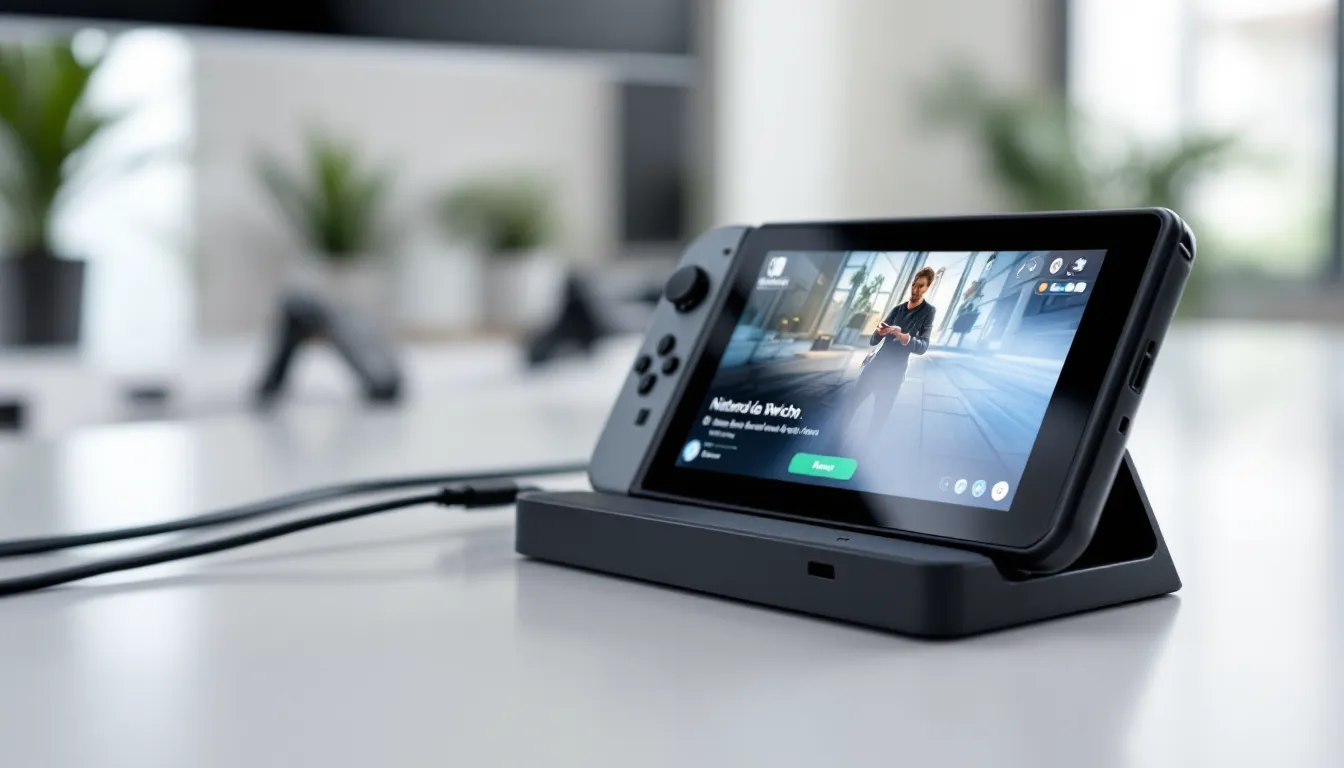
The Nintendo dock serves three core functions: charging the Switch, outputting video to a TV, and providing USB connectivity for accessories. When you slide the Switch into the dock, the USB-C connector on the bottom of the console links to the dock’s internal circuitry, which routes power from the AC adapter and HDMI video signal to your display.
This is what makes the Switch a true hybrid console. In handheld mode, the system runs at lower clock speeds to conserve battery. Docking triggers a hardware mode switch that boosts GPU and CPU performance, pushing resolution from 720p to 1080p (or 4K upscaling on the Switch OLED model in select titles). The dock doesn’t contain any additional processing power, it’s a pass-through device that unlocks the console’s full potential by providing adequate cooling and power delivery.
Technical Specifications and Components
The official Nintendo Switch dock includes:
- USB-C connector (22-pin, located inside the dock’s top slot)
- HDMI 1.4 output (supports up to 1080p at 60fps)
- USB 3.0 port (back panel, primarily for wired LAN adapters)
- Two USB 2.0 ports (side panel, for controllers or accessories)
- AC adapter input (39W, model HAC-002)
The dock’s internal PCB is minimal, it’s essentially a hub that splits the USB-C signal into HDMI, USB, and power. The Switch’s Tegra X1 chip handles all video encoding and display output. Power delivery is rated at 15V/2.6A (39W), which is critical for maintaining performance and charging simultaneously.
One often-overlooked detail: the dock uses USB Power Delivery (USB-PD) protocol to negotiate the correct voltage. Non-compliant third-party chargers or docks that don’t carry out USB-PD properly can cause charging failures or, in rare cases, brick the console. Always check that replacement docks explicitly support USB-PD.
Setting Up Your Nintendo Dock: Step-by-Step Instructions
Connecting Cables and Positioning Your Dock
Start with the official setup sequence:
- Plug the AC adapter into the back of the dock (leftmost port marked “AC ADAPTER”).
- Connect the HDMI cable to the center port on the dock’s back panel and the other end to your TV.
- Plug the AC adapter into a wall outlet.
- Open the dock’s back panel to route cables neatly, then close it.
- Insert the Switch into the dock with the screen facing the same direction as the dock’s front (the side with the hinged cover).
The green LED on the dock’s front should light up when the AC adapter is connected. Once the Switch is docked, the screen will go black and output will switch to the TV within 2-3 seconds.
Positioning tips:
- Place the dock on a stable, flat surface with at least 4 inches of clearance on all sides for ventilation.
- Avoid enclosed cabinets, docked mode generates more heat, and poor airflow can throttle performance.
- Keep the dock away from other heat sources (cable boxes, amplifiers, game consoles).
Optimizing Display and Audio Settings
Out of the box, the Switch defaults to automatic resolution and RGB range detection. For most modern TVs, this works fine. But if you’re seeing washed-out colors, overscan issues, or audio dropouts, tweak these settings:
- Go to System Settings > TV Settings > TV Resolution.
- Switch from “Automatic” to 1080p if your TV supports it. This prevents resolution negotiation bugs.
- Set RGB Range to “Full” if your TV supports full RGB (check your TV’s HDMI settings, it’s often labeled “HDMI Black Level” or “RGB Range”).
- For audio, choose TV Settings > TV Sound and select “Stereo” or “Surround” based on your setup. If using a soundbar or receiver, make sure the TV is set to pass audio through.
If you’re connecting to a monitor, check if it supports HDMI audio. Many gaming monitors route audio via HDMI, but some require a separate 3.5mm connection from the Switch’s headphone jack (which only works in handheld mode).
Common Nintendo Dock Problems and How to Fix Them
Switch Not Connecting to TV or No Video Output
This is the most reported dock issue. The Switch charges, but the TV shows “No Signal.”
Quick fixes:
- Reseat the Switch in the dock. Remove it, wait 10 seconds, then reinsert firmly.
- Power cycle the dock. Unplug the AC adapter from both the dock and the wall outlet for 30 seconds, then reconnect.
- Try a different HDMI port on your TV. Some ports are labeled “HDMI 2.0” or “ARC”, avoid ARC ports if possible, as they can cause handshake issues.
- Test a different HDMI cable. Cheap or damaged cables fail silently.
If none of that works, the USB-C connector inside the dock may be misaligned or dirty. Inspect the connector with a flashlight, dust, lint, or bent pins can interrupt the connection. Use compressed air or a soft brush to clean it. Do not use metal tools.
Advanced troubleshooting:
Some users comparing handheld options have reported that certain TV firmware updates break HDMI-CEC compatibility with the Switch. Disable HDMI-CEC in your TV’s settings and test again.
Charging Issues While Docked
The Switch shows the charging icon in handheld mode, but the battery drains or doesn’t charge when docked.
Common causes:
- Insufficient power delivery. The official adapter is 39W: third-party adapters rated below 30W can’t keep up with docked power draw during gameplay.
- Faulty AC adapter. Test the adapter in handheld mode (plug directly into the Switch via USB-C). If it charges normally, the dock is the problem.
- Dock connector wear. After hundreds of dock/undock cycles, the USB-C connector can loosen. Try gently cleaning the connector or replacing the dock.
Pro tip: Docked performance is locked at full power draw, so if you’re playing demanding titles like The Legend of Zelda: Tears of the Kingdom or Xenoblade Chronicles 3, a weak adapter will cause battery drain even while “charging.”
Overheating and Ventilation Concerns
The Switch’s internal fan ramps up in docked mode to handle the increased GPU load. If the console is overheating, you’ll notice:
- Fan noise that sounds like a jet engine
- Performance drops or stuttering
- The console feeling hot to the touch on the back panel
Solutions:
- Check dock placement. Ensure side vents aren’t blocked.
- Clean the console’s air intake. Power off the Switch, remove it from the dock, and use compressed air on the top vent (near the cartridge slot) and bottom vents.
- Monitor ambient temperature. Gaming in a room above 80°F (27°C) can push thermals into throttling territory.
If overheating persists, the thermal paste inside the Switch may need replacement, this is common on launch-era units from 2017-2018. That’s a repair best left to professionals or experienced modders.
Official vs. Third-Party Nintendo Docks: What You Need to Know
Pros and Cons of Third-Party Dock Alternatives
Third-party docks exploded in popularity after the Switch’s launch, promising compact designs, extra ports, and lower prices. But the track record is mixed.
Pros:
- Portability. Many third-party docks are travel-sized, fitting easily in a backpack.
- Additional features. Some include Ethernet ports, extra USB-A ports, or support for DisplayPort output.
- Cost. Third-party docks range from $30-$60, compared to $60-$70 for an official dock.
Cons:
- Reliability. Early third-party docks (2017-2019) had notorious issues with bricking consoles due to improper USB-PD implementation. Firmware update 5.0.0 in 2018 exacerbated this.
- Build quality. Cheaper docks use thinner plastic, flimsy connectors, and lack proper shielding, leading to HDMI interference or charging inconsistencies.
- Warranty voids. Nintendo’s official stance is that third-party accessories can void your warranty if they cause damage.
As of 2026, reputable brands like Genki and JSAUX have ironed out most USB-PD issues. But, unbranded Amazon/eBay docks remain risky.
Safety and Compatibility Considerations
If you’re considering a third-party dock, follow these rules:
- Verify USB-PD compliance. Look for explicit mentions of “USB Power Delivery 2.0” or “PD 3.0” in the specs.
- Check user reviews from 2024-2026. Avoid products with recent reports of bricking or charging failures.
- Use the official AC adapter whenever possible. Third-party adapters introduce another point of failure.
- Test gradually. When using a new dock for the first time, monitor the Switch for unusual behavior: slow charging, artifacting on screen, or excessive heat.
Compatibility extends to the Switch OLED and Switch Lite (though the Lite doesn’t support TV output). The OLED model uses the same USB-C pinout and USB-PD requirements, so any dock that works with the original Switch should work with the OLED. But, the OLED’s improved kickstand and LAN port on the official dock make third-party alternatives less compelling.
Hardware reviewers at TechRadar have noted that many third-party docks now undergo stricter QA testing after the 2018-2019 bricking scare, but buyer beware remains the motto.
Best Replacement and Travel Docks for Nintendo Switch in 2026
Compact and Portable Dock Options
For gamers who travel frequently or attend LAN parties, a compact dock is essential.
Genki Covert Dock (2nd Gen) remains the gold standard. It’s the size of a phone charger, includes a built-in HDMI cable, and supports USB-PD properly. The updated 2026 model adds a USB-C port for accessories and reinforced hinges. Price: ~$65.
JSAUX Docking Station offers a middle ground: slightly larger than the Genki, but includes three USB-A ports and a foldable design. It’s been tested extensively with firmware 18.0.0+ and shows no bricking issues. Price: ~$50.
Skull & Co. Jumpgate is another solid choice, with a snap-on cover that doubles as a kickstand. It supports the Switch OLED’s LAN port natively and fits inside a carrying case. Price: ~$55.
Avoid: No-name docks from marketplace sellers with generic model numbers (“SWITCH DOCK PRO V2”). These often use cloned chipsets that fail USB-PD negotiation.
Premium Docks with Extra Features
If portability isn’t a priority and you want additional functionality:
UGREEN 6-in-1 Dock includes dual HDMI output (though the Switch only uses one), four USB-A 3.0 ports, Ethernet, and a built-in cooling fan. The fan is a nice touch for extended docked sessions, though it adds noise. Price: ~$80.
Gulikit Dock offers similar specs but swaps one HDMI port for a DisplayPort connection, useful if you’re connecting to a gaming monitor with FreeSync or G-Sync. The Gulikit also supports 100W pass-through charging, so you can charge a laptop via the dock’s extra USB-C port. Price: ~$75.
Official Nintendo Dock OLED Edition is worth mentioning if you’re upgrading from a launch-era Switch. The OLED dock includes a built-in Ethernet port and a slightly more stable USB-C connector. It’s not a huge leap, but it eliminates the need for a USB-LAN adapter. Price: ~$70.
Retro gaming fans who want to pair classic controllers with their docked setup should prioritize docks with multiple USB-A ports for wired adapters.
Maintaining and Caring for Your Nintendo Dock
Cleaning Tips and Best Practices
Dust and debris are the silent killers of dock connectivity. The USB-C connector inside the dock is recessed and prone to accumulating pocket lint, pet hair, and dust.
Monthly cleaning routine:
- Power off the dock and unplug all cables.
- Use compressed air to blow out the interior of the dock. Hold the can upright to avoid moisture discharge.
- Inspect the USB-C connector with a flashlight. If you see visible debris, use a soft-bristle toothbrush or a wooden toothpick (never metal) to gently dislodge it.
- Wipe the exterior with a microfiber cloth lightly dampened with isopropyl alcohol (70% or higher). Avoid getting moisture inside the connector.
HDMI and USB port maintenance:
HDMI ports can loosen over time from repeated plugging/unplugging. If the HDMI cable feels loose, replace the cable first, worn cables often have deformed connectors that widen the port. If the dock’s port itself is damaged, you’ll need a replacement dock.
USB ports are more forgiving, but avoid leaving heavy USB devices (external drives, bulky adapters) plugged in permanently. The weight can stress the solder joints on the PCB.
Preventing Scratches and Physical Damage
The Switch community has long debated dock scratching, specifically, whether the dock’s front rails can scratch the console’s screen during docking.
Reality check: The original Switch (with the plastic screen) was more susceptible to micro-scratches. The Switch OLED’s glass screen is far more resistant, though not immune.
Prevention methods:
- Apply a tempered glass screen protector before your first dock. This is non-negotiable if you have a launch-era Switch.
- Dock slowly and deliberately. Don’t slam the Switch into the dock. Align the USB-C connector and slide smoothly.
- Check dock alignment. If the dock is on an uneven surface, one rail may press harder against the screen. Place a level on top of the dock to verify.
- DIY padding. Some users apply thin felt or microfiber strips to the inner rails. This works, but use adhesive carefully, residue can transfer to the console.
Physical damage to the dock’s hinge or back panel is less common but can occur if the dock is dropped or stepped on. Replace broken docks immediately, cracked plastic can create sharp edges that damage the Switch’s casing.
Enhancing Your Docked Gaming Experience
Recommended Accessories and Cable Upgrades
The stock dock setup is functional, but a few upgrades can improve quality of life.
HDMI 2.1 cables won’t boost the Switch’s 1080p output, but they’re more durable and provide better shielding against interference. Opt for certified cables from brands like Anker or Cable Matters. Price: ~$10-$15.
USB Ethernet adapter is mandatory for competitive online gaming. The Switch’s Wi-Fi chip (Broadcom BCM4356) is notoriously weak, leading to packet loss and latency spikes in games like Splatoon 3 and Super Smash Bros. Ultimate. The official Nintendo LAN adapter (model HACA5SZAA) or third-party adapters with ASIX AX88179 chipsets deliver sub-10ms latency. Price: ~$20-$30.
Pro Controller charging stand that connects to the dock’s USB ports keeps controllers topped off between sessions. Avoid cheap stands that don’t support the Pro Controller’s USB-C charging protocol, these can overheat the battery. Price: ~$15-$25.
Cable management clips or a cable sleeve tidy up the mess behind the dock. Velcro ties are reusable and won’t damage cables like zip ties can.
Enthusiasts following gaming hardware trends have noted that premium HDMI cables with gold-plated connectors show measurable improvements in signal stability over 15+ foot runs, useful for living room setups with wall-mounted TVs.
Maximizing Graphics and Performance While Docked
The Switch doesn’t have a ton of tweakable settings, but you can squeeze out better visuals:
Enable Game Mode on your TV. This reduces input lag by bypassing post-processing. Input lag in docked mode can range from 50ms to 120ms depending on your TV’s settings. Game Mode typically cuts this to 20-30ms.
Disable motion smoothing (often called “TruMotion,” “MotionFlow,” or “Auto Motion Plus”). This feature adds interpolated frames, which causes stuttering in fast-paced games.
Adjust overscan settings. Some TVs crop the image edges, cutting off UI elements in games like Xenoblade Chronicles or Fire Emblem Engage. Look for a setting called “Just Scan,” “Screen Fit,” or “1:1 Pixel Mapping” in your TV’s picture menu.
Monitor thermals during long sessions. If you’re playing GPU-intensive titles for 3+ hours, consider a USB cooling fan (some dock replacements include these). The Switch throttles GPU clocks by ~10% when core temps exceed 85°C, leading to frame drops.
Use Performance Mode in supported games. Titles like Hyrule Warriors: Age of Calamity, Apex Legends, and The Witcher 3 offer performance modes that prioritize frame rate over resolution. In docked mode, this can mean the difference between 30fps and 60fps.
News outlets covering gaming tech at Nintendo Life regularly publish patches notes and performance analyses for major releases, which can help you decide when to use performance vs. quality modes.
Conclusion
The Nintendo dock is a deceptively simple piece of hardware that plays a critical role in the Switch’s hybrid identity. Whether you’re troubleshooting a video dropout, weighing the risks of a third-party upgrade, or optimizing your living room setup, understanding how the dock works, and where it falls short, gives you control over your gaming experience.
Take the time to set it up correctly, maintain the connectors, and choose replacement docks carefully. A well-cared-for dock will serve you through hundreds of gaming sessions without issue. And if you’re upgrading or replacing, prioritize USB-PD compliance and user reviews from the last year, tech moves fast, and what was risky in 2019 might be rock-solid in 2026.


