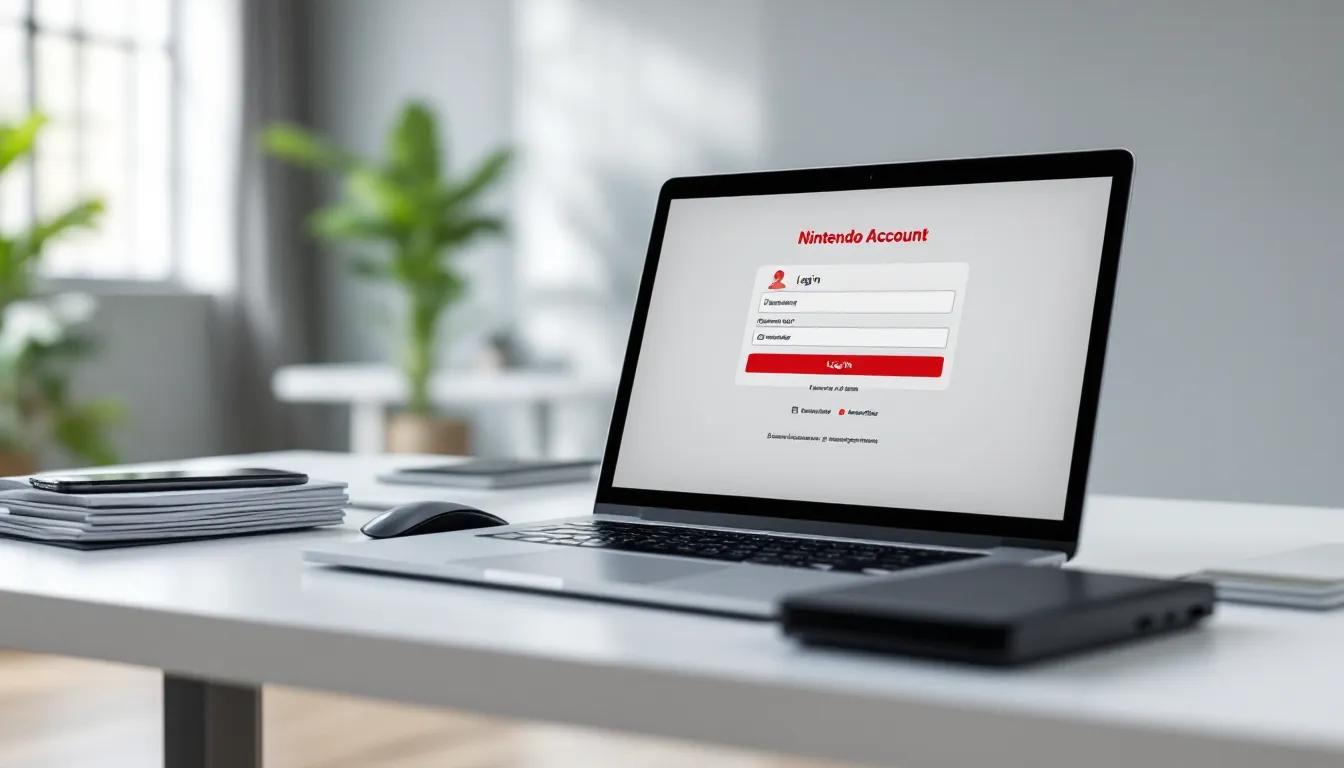
If you’ve picked up a Switch in the past few years, you’ve run into Nintendo‘s account ecosystem. Maybe you breezed through setup without a second thought. Or maybe you stared at “Nintendo Account” vs. “Nintendo Network ID” and wondered what the hell the difference was. Either way, understanding how Nintendo accounts work isn’t just about checking a box during setup, it’s about protecting your digital library, syncing cloud saves, managing family access, and squeezing every Gold Point out of your purchases.
Nintendo’s account system has evolved significantly since the Wii U era, and in 2026, it’s the backbone of everything from eShop purchases to online multiplayer. Whether you’re setting up your first account, managing parental controls for a kid, or troubleshooting a region-locked purchase, this guide covers the mechanics, security features, and common headaches you’ll encounter.
Key Takeaways
- A Nintendo Account is your universal login required for eShop purchases, cloud saves, online multiplayer, and managing Gold Points rewards across all Switch devices.
- Two-factor authentication is essential to protect your digital library from hijacking; enable it via an authenticator app from your Nintendo Account security settings.
- Linking your Nintendo Account to your Switch console is critical—it ties your game purchases to your account rather than the hardware, so your library transfers if your console fails or is replaced.
- Nintendo Switch Online membership is tied to your account, not your console; a Family plan at $34.99/year covers up to eight accounts and is ideal for households with multiple players.
- Gold Points earned from digital purchases (5%) and physical games (1%) expire after 12 months, so redeem them in the eShop at a rate of 100 points = $1 to avoid losing rewards.
- Child accounts are managed through a parent’s Nintendo Account with built-in parental controls that sync across all consoles, restricting purchases, playtime, and content access based on age.
What Is a Nintendo Account?
A Nintendo Account is your universal login for Nintendo’s online services. It’s what you use to access the eShop, redeem Gold Points, manage subscriptions like Nintendo Switch Online, and track your My Nintendo rewards. Think of it as your Nintendo profile across all platforms, not just Switch, but also mobile apps like Pokémon GO integration and any future Nintendo hardware.
Created in 2016, the Nintendo Account replaced the older, more fragmented systems Nintendo used during the Wii and Wii U days. It’s platform-agnostic: you can create and manage it from any web browser, your phone, or directly on your Switch. Your account stores your purchase history, linked payment methods, and friend list.
Nintendo Account vs. Nintendo Network ID: Key Differences
This trips up a lot of players, especially those who owned a Wii U or 3DS. A Nintendo Network ID (NNID) was the old account system used on those consoles. If you had a Wii U, you logged in with an NNID. It’s still technically functional for 3DS and Wii U eShop activity (though the eShops for those platforms shut down in March 2023), but it’s essentially legacy tech.
Here’s the breakdown:
- Nintendo Account: Current system. Works on Switch, mobile apps, and web. Required for eShop purchases, NSO membership, and cloud saves.
- Nintendo Network ID (NNID): Old system. Used on 3DS and Wii U. You can link your NNID to your Nintendo Account to carry over certain rewards or friend connections, but it’s not required for Switch functionality.
If you’re setting up a Switch for the first time, you only need a Nintendo Account. The NNID is a relic unless you’re clinging to a 3DS for Pokémon Bank transfers or legacy eShop credit.
How to Create a Nintendo Account
Setting up a Nintendo Account takes about five minutes. You can do it before you even unbox your Switch, or directly on the console during initial setup. Nintendo supports account creation via email or by linking an existing Google, Facebook, Apple, or Twitter account. Most players go the email route for better control.
Step-by-Step Account Registration Process
Here’s how to create an account from scratch:
- Go to the Nintendo Account creation page. accounts.nintendo.com from any browser or select “Create Account” on your Switch.
- Choose your sign-in method. Pick email/password or link a social media account. Email gives you more flexibility if you switch phones or deactivate social accounts later.
- Enter your details. Provide your email address, date of birth, country/region, and create a password. Your date of birth determines age-restricted access and parental control defaults.
- Verify your email. Nintendo sends a confirmation code to your inbox. Enter it to activate the account.
- Set your nickname and Mii (optional). Your nickname is what friends see. You can skip the Mii if you’re not into the avatar thing.
- Agree to terms and privacy policy. Standard legal stuff. Skim it or don’t: you’re clicking “Agree” either way.
Once created, your account is live. You can log in on your Switch, link payment methods, and start downloading games. Given the increasing focus on content automation tools for gaming setups, streamlining your account early saves headaches later.
Creating Child Accounts for Family Members
If you’re setting up a Switch for a kid under 13 (or under 16 in some regions, depending on local regulations), you’ll need to create a child account. Child accounts are managed by a parent/guardian’s Nintendo Account and have built-in restrictions.
Here’s the process:
- Log into your Nintendo Account (the parent/guardian account).
- Go to Family Group settings. Navigate to “Family Group” from your account dashboard and select “Add Member.”
- Choose “Create a child account.” Enter the child’s nickname, date of birth, and gender.
- Set parental controls. You can restrict eShop purchases, limit playtime, filter online communication, and block mature-rated games. These settings sync with the Nintendo Switch Parental Controls app (available on iOS and Android).
- Confirm and link to Switch. The child account can now be linked to a user profile on any Switch console in your household.
Child accounts don’t have their own email login, they’re always managed through the parent account. Once the child turns 13 (or the regional age threshold), you can convert it to a standard account.
Linking Your Nintendo Account to Your Switch Console
Your Nintendo Account doesn’t automatically sync to your Switch, you need to link it to a user profile on the console. This is a crucial step most players do during initial setup, but you can also link accounts to existing profiles later.
Why Linking Matters for Digital Purchases and Cloud Saves
Linking your Nintendo Account to your Switch profile unlocks several critical features:
- Digital purchases are tied to your account, not the console. If your Switch dies, gets stolen, or you upgrade to a Switch 2 (whenever that drops), your game library follows your account.
- Cloud saves require a linked account with NSO membership. Without linking, you can’t back up save data to the cloud. Lose the console, lose your 300-hour Tears of the Kingdom save.
- Gold Points for physical and digital games. You earn points for purchases, but only if your account is linked.
- Access to DLC and season passes. Downloadable content is locked to your account. If you’re not linked, you can’t download what you bought.
Essentially, playing without a linked account is like gaming in 2005, everything’s local, and hardware failure means catastrophe. Major outlets covering gaming technology news have long emphasized the importance of account linking for digital ownership.
How to Link Multiple Accounts to One Console
A single Switch console supports up to eight user profiles, and each profile can link to a different Nintendo Account. This is useful for households where multiple people share one console but want separate save files, friends lists, and eShop purchases.
To link additional accounts:
- Create a new user profile on the Switch. From the Home menu, go to System Settings > Users > Add User.
- Select “Create New User” and set an icon and nickname.
- Link a Nintendo Account. Choose “Link Nintendo Account” and either sign in to an existing account or create a new one.
- Repeat for each family member or roommate.
Each linked account maintains separate save data, but all users on the console can access any digital games purchased by the primary console account (more on that in the NSO section). Physical games are playable by anyone, no linking required.
Managing Your Nintendo Account Settings
Once your account is set up and linked, you’ll want to lock down security and configure privacy settings. Nintendo’s account dashboard isn’t as robust as Steam or PlayStation Network, but it covers the essentials.
Security Features: Two-Factor Authentication and Password Management
Two-factor authentication (2FA) is non-negotiable if you care about your digital library. Nintendo supports 2FA via authenticator apps (Google Authenticator, Authy, etc.). Here’s how to enable it:
- Log into your Nintendo Account on the web at accounts.nintendo.com.
- Go to “Sign-in and security settings.”
- Select “2-Step Verification” and choose “Edit.”
- Follow the prompts to link an authenticator app. Scan the QR code and enter the six-digit code to confirm.
Once enabled, you’ll need both your password and a time-based code from your authenticator app to log in. This blocks most account hijacking attempts, which have spiked in recent years as digital libraries become more valuable.
For password management, Nintendo allows password changes from the account dashboard. Use a unique, strong password, ideally stored in a password manager. Don’t reuse your Netflix login.
Privacy Settings and Parental Controls
Nintendo’s privacy settings let you control who can see your online status, friend requests, and play activity. From your account dashboard:
- Friend suggestions: Toggle whether Nintendo can suggest friends based on your social media connections or other Nintendo services.
- Play activity visibility: Choose whether friends can see what games you’re playing and for how long.
- Email preferences: Opt in or out of promotional emails, newsletters, and My Nintendo reward notifications.
Parental controls are managed separately through the Nintendo Switch Parental Controls app or the web dashboard. You can:
- Set daily playtime limits and bedtime alarms.
- Restrict access to games based on ESRB or PEGI ratings.
- Disable in-game purchases and eShop access.
- Filter online communication and user-generated content.
- Monitor play reports to see what games your kid is spending time on.
Parental controls sync across all consoles linked to the child account, so settings apply whether they’re playing on the living room Switch or a handheld Switch Lite.
Nintendo Switch Online Membership and Your Account
Nintendo Switch Online (NSO) is Nintendo’s paid subscription service, required for online multiplayer in most games (free-to-play titles like Fortnite and Rocket League don’t require it). Your NSO membership is tied directly to your Nintendo Account, not your console.
Individual vs. Family Membership Plans
Nintendo offers three main membership tiers as of 2026:
- Individual (12-month): $19.99/year. Covers one Nintendo Account.
- Family (12-month): $34.99/year. Covers up to eight Nintendo Accounts (they don’t have to live in the same household, but they must be in the same Family Group).
- Individual + Expansion Pack (12-month): $49.99/year. Includes N64, Genesis, and Game Boy Advance games, plus DLC for select titles (Mario Kart 8 Deluxe Booster Course Pass, Animal Crossing: New Horizons Happy Home Paradise, Splatoon 2 Octo Expansion).
- Family + Expansion Pack (12-month): $79.99/year. Same as above, but for up to eight accounts.
The Family plan is a no-brainer if you’ve got three or more accounts in your household or friend group. Split the cost and everyone gets full NSO benefits. Many gamers following updates on Nintendo Switch news coordinate Family plan sharing to maximize value.
Access to Cloud Saves, Classic Games, and Online Play
NSO membership unlocks:
- Cloud save backups: Automatic or manual uploads for most games (notable exceptions: Splatoon 3, Pokémon Scarlet/Violet, and Animal Crossing: New Horizons have special backup systems or no cloud support).
- Online multiplayer: Required for Mario Kart 8 Deluxe, Splatoon 3, Smash Ultimate, and most other first- and third-party online games.
- NES and SNES libraries: 100+ classic games with online co-op and save states.
- Expansion Pack content: N64 games (Ocarina of Time, Mario 64, GoldenEye 007), Genesis titles, Game Boy Advance games, and bundled DLC.
- Smartphone app features: Voice chat for supported games (yes, it’s still a separate app in 2026, don’t ask).
Your membership status is visible in your Nintendo Account dashboard. If it lapses, your cloud saves remain stored for six months, but you can’t upload new saves or access online play until you renew.
Using My Nintendo Rewards and Gold Points
My Nintendo is Nintendo’s rewards program, integrated directly into your Nintendo Account. It’s split into two currencies: Gold Points (earned from game purchases) and Platinum Points (earned from completing missions like visiting the eShop or linking social accounts).
How to Earn and Redeem Points for Discounts
Gold Points are the more valuable currency. Here’s how you earn them:
- Digital game purchases: Earn 5% of the purchase price in Gold Points. A $60 game nets you 300 points.
- Physical game purchases: Earn 1% by registering the game card within one year of release. You’ll need to insert the cartridge and claim points from the eShop menu.
Gold Points expire 12 months after you earn them, so use them or lose them. They’re redeemable directly in the eShop at a rate of 100 points = $1 USD. At checkout, you’ll see an option to apply points toward your purchase.
Platinum Points are less flexible. They’re mostly used for:
- Discounts on select eShop titles (usually indie games or older first-party releases).
- Physical rewards from the My Nintendo Store (keychains, posters, apparel, availability varies by region).
- In-game items for mobile apps like Mario Kart Tour or Fire Emblem Heroes.
You can check your point balance and expiration dates from your Nintendo Account dashboard under “My Nintendo.” The system isn’t as generous as Sony’s old PlayStation Rewards or Xbox’s Microsoft Rewards, but it’s something. Stacking Gold Points with eShop sales can shave 10-15% off the price of new releases if you time it right.
Troubleshooting Common Nintendo Account Issues
Even a straightforward system like Nintendo Accounts hits snags. Here are the most common problems and how to fix them.
Recovering a Forgotten Password or Email
If you’ve forgotten your password, recovery is simple:
- Go to the Nintendo Account login page and click “Forgot your password?”
- Enter the email address associated with your account. Nintendo sends a password reset link.
- Follow the link and create a new password. Make sure it’s at least eight characters with a mix of letters, numbers, and symbols.
If you’ve forgotten the email address tied to your account, things get trickier. You’ll need to contact Nintendo Support with as much identifying info as possible: your console serial number, purchase history, linked NNID, or the last four digits of any payment method on file. Recovery can take several days, so keep records of your account details somewhere safe.
For persistent issues, the Nintendo Support Website offers live chat and phone support during business hours.
Unlinking and Transferring Accounts Between Devices
If you’re selling your Switch or upgrading to a new console, you’ll want to unlink your Nintendo Account from the old device. Here’s how:
- Unlink from the console itself: Go to System Settings > Users > [Your Profile] > “Unlink Nintendo Account.”
- Alternatively, unlink via the web: Log into your Nintendo Account at accounts.nintendo.com, go to “Shop menu,” and deregister the console under “Deregister Primary Console.”
Once unlinked, you can link your account to a new Switch. Your digital purchases, save data (if cloud-backed via NSO), and account settings transfer automatically. Note: You can only change your primary console once per year unless you deregister through Nintendo Support.
If you’re moving to a new console and want to transfer user profiles and local save data without relying on cloud backups, use the Transfer Your User Data feature found in System Settings > Users > Transfer Your User Data. Both consoles need to be on the same local network.
Region Lock and International Account Considerations
The Switch is not region-locked at the hardware level, you can play cartridges from any region on any console. But, your Nintendo Account region affects the eShop you access, accepted payment methods, and game pricing.
Here’s what to know:
- Changing regions: You can change your account’s country/region from your account settings, but only if you have zero eShop balance. Nintendo won’t let you switch if you have leftover credit. Spend it or lose it.
- Multiple regional accounts: Some players create separate accounts for different regions (e.g., a Japan account for exclusive eShop releases). You can link multiple accounts to one console and switch between eShops by changing user profiles.
- DLC region matching: DLC must match the region of the base game. If you bought a physical copy of Splatoon 3 from Japan, you’ll need to download DLC from the Japanese eShop, not the US one.
- Payment methods: Not all credit cards or PayPal accounts work on every regional eShop. If your card is declined, try adding eShop credit via a digital code from a retailer in that region.
Region-hopping is common among enthusiasts who want early access to Japanese releases or region-exclusive demos. Just be mindful of save data compatibility and Gold Point redemption, points earned in one region’s eShop only apply to that region.
Conclusion
Your Nintendo Account is more than a login, it’s the framework holding your digital library, multiplayer access, cloud saves, and rewards together. Whether you’re managing a household of players, securing your account against hijackers, or navigating region quirks for a Japanese eShop exclusive, understanding the system saves time and protects your investment.
As Nintendo’s ecosystem evolves, whenever the Switch successor arrives, or if they expand mobile integration further, your account will remain the constant. Set it up right, lock it down with 2FA, and treat it like the digital vault it is. Your future self (and your 500-hour Xenoblade Chronicles 3 save) will thank you.


