how to join servers on minecraft xbox is a common question for players. This guide lists the must-have items and clear steps. It shows what a player needs, how to join official servers and Realms, and how to fix the most common problems. The text keeps instructions simple. The steps work on Xbox Series X, Series S, and Xbox One in 2026.
Key Takeaways
- To join servers on Minecraft Xbox, ensure you have an active Xbox Live Gold or Game Pass subscription, the latest Minecraft Bedrock Edition, and multiplayer permissions on your Microsoft account.
- Joining official servers involves selecting Featured Servers from the Minecraft menu, while joining Realms requires an invite from the Realm owner and accessing it via the Friends tab.
- You can add third-party servers by inputting their Bedrock-compatible IP address and port through the Add Server option, ensuring the server supports Xbox connections.
- Check and adjust your Xbox network settings to have an Open or Moderate NAT type and enable multiplayer permissions to avoid common connection issues.
- For frequent connection problems, restart your console and router, verify Xbox Live and Minecraft server statuses, and consider network improvements like wired connections or router port forwarding.
- Keep your game and console updated and follow safe online practices to enjoy smooth and secure multiplayer experiences on Minecraft Xbox in 2026.
Check Requirements And Prepare Your Xbox
Players who want to learn how to join servers on minecraft xbox must check a few items first. First, the player needs an active Xbox Live Gold or Game Pass Core subscription if the server requires it. Second, the player needs the latest version of Minecraft Bedrock Edition on Xbox. Third, the player should sign in with a Microsoft account that has multiplayer permissions.
The player should confirm system updates. The Xbox installs updates automatically if it stays in Instant-On mode. The player can also check Updates & downloads from Settings and install any pending updates.
The player should check network settings. The player opens Settings > General > Network settings. The player verifies NAT type as Open or Moderate. If NAT type is Strict, the player may have trouble joining third-party servers.
The player can check Xbox privacy and online safety. The player goes to Settings > Account > Privacy & online safety. The player makes sure Multiplayer and You can play with people outside of Xbox Live are allowed. Parents can change these settings in a family account.
The player should enable Xbox Live multiplayer and add friends. Adding friends helps with private server invites. The player opens the Friends tab and sends requests. The player can link a Microsoft account to their Mojang profile if needed.
Finally, the player should clear any local save conflicts. The player can restart the console if the game shows strange behavior. A full restart often resolves minor issues and lets the player focus on joining servers on minecraft xbox.
How To Join Realms And Featured Servers On Xbox
The player who asks how to join servers on minecraft xbox has two main paths: Realms and Featured Servers. Realms are private worlds hosted by the game. Featured Servers are public multiplayer worlds that the game lists inside the servers tab.
To join a Realm, the player opens Minecraft and signs in. The player selects Play, then selects Friends, then selects Join Realm. The player needs an invite from the Realm owner. The owner sends an invite from the Realm screen or the in-game menu. After the player accepts the invite, the player can join the Realm from the Friends tab.
To join a Featured Server, the player opens Minecraft and signs in. The player selects Play, then selects Servers. The player scrolls the list and picks a server like Mineplex or Lifeboat if the server remains listed. The player selects Join. The game connects and loads the server lobby.
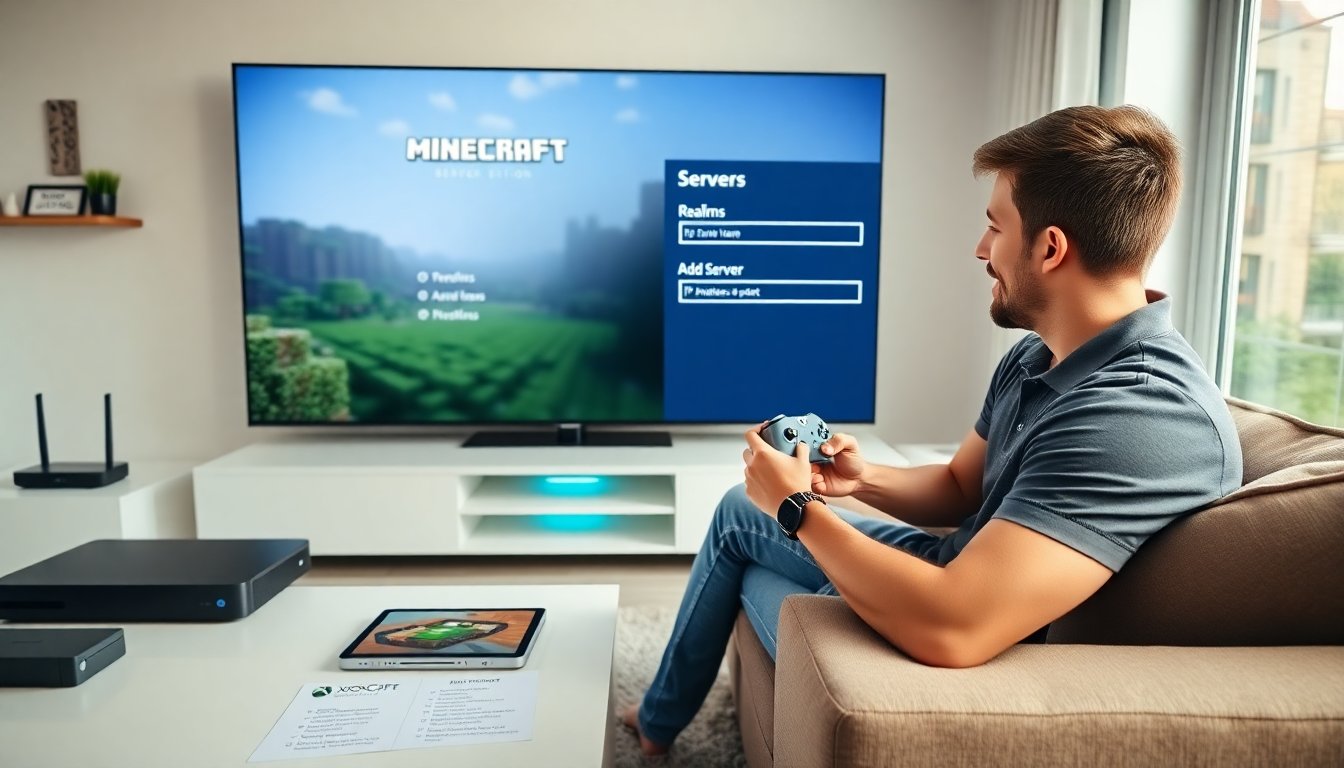
To add a third-party server not listed, the player must use the Bedrock server address feature. The player opens Play > Servers > Add Server. The player enters the server name, IP address, and port. The player presses Add Server. The player selects the server and then Join. The server must support Bedrock on Xbox. The server operator must allow connections from console players.
The player should check server compatibility. Some servers only allow Java Edition or require a connector service. The player can search server pages for “Bedrock” or “Xbox” support. The player can ask the server admin for the correct IP and port.
The player who practices these steps will master how to join servers on minecraft xbox. The player should keep credentials secure and avoid servers that ask for account passwords.
Troubleshooting Common Connection Issues And Helpful Tips
The player who reads this section gets fast fixes for common errors when they try to join servers on minecraft xbox.
If the game shows “Unable to connect,” the player checks Xbox Live status at the official Xbox status page. The player checks Minecraft server status on the server host page. The player restarts the console and router.
If NAT type is Strict, the player changes router settings. The player enables UPnP in the router menu or places the Xbox in the DMZ. The player can set a static IP for the Xbox and forward the server port if the player knows the port number. The player should follow the router maker’s guide to avoid accidental security issues.
If the player gets “Session Full” the player tries again later or joins when fewer players are online. The player can ask the server admin for a reserved slot. The player can look for a similar server with lower population.
If the player cannot see friends or Realms, the player checks privacy settings and friend list status. The player confirms that the friend uses the same game version. The player ensures that firmware and game updates match between users.
If the player gets frequent lag, the player checks network speed. The player runs the Network settings > Test network speed & statistics. The player uses wired Ethernet when possible. The player closes other high-bandwidth apps. The player moves the console closer to the router if using Wi‑Fi.
If the player faces server compatibility errors, the player confirms that the server supports Bedrock on Xbox. The player uses a recommended connector if the server requires it. The player avoids sharing account details with connector services that ask for passwords.
The player can use these tips to reduce downtime. The player follows safe behavior when joining public servers. The player keeps game updates and Xbox updates current to ensure the steps to join servers on minecraft xbox keep working in 2026.